
When a colleague or manager requests your approval on a note, follow these steps to navigate the platform and submit your sign-off.
Step 1: Access Macorva from Your Email
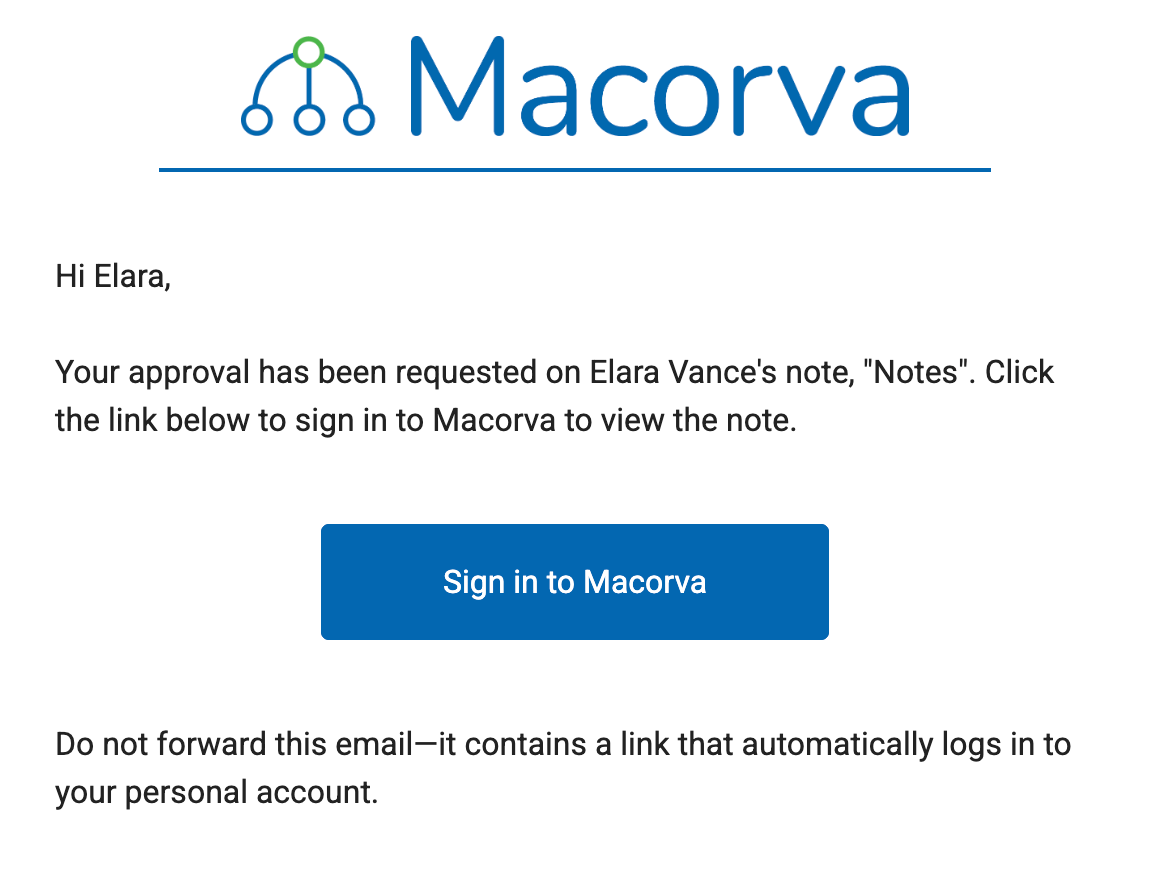
Open the email with the subject line "Request for Macorva note approval."
Click the blue Sign in to Macorva button. This link will log you directly into your account.
Step 2: Navigate to Employee Notes
Once you are on your dashboard:
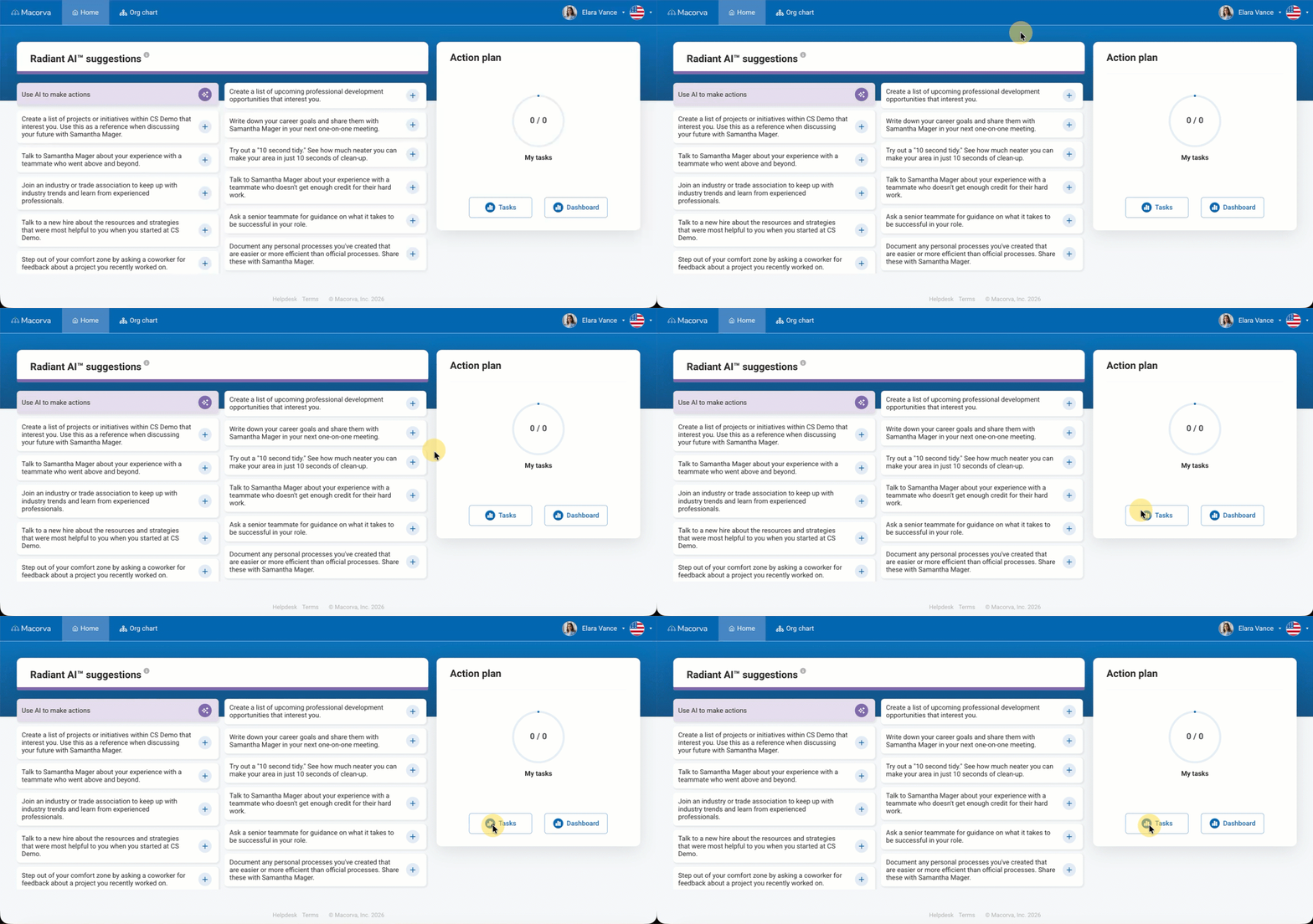
Locate the Action plan module on the right side of the screen.
Click the Tasks button (this switches the view from the default dashboard/action items).
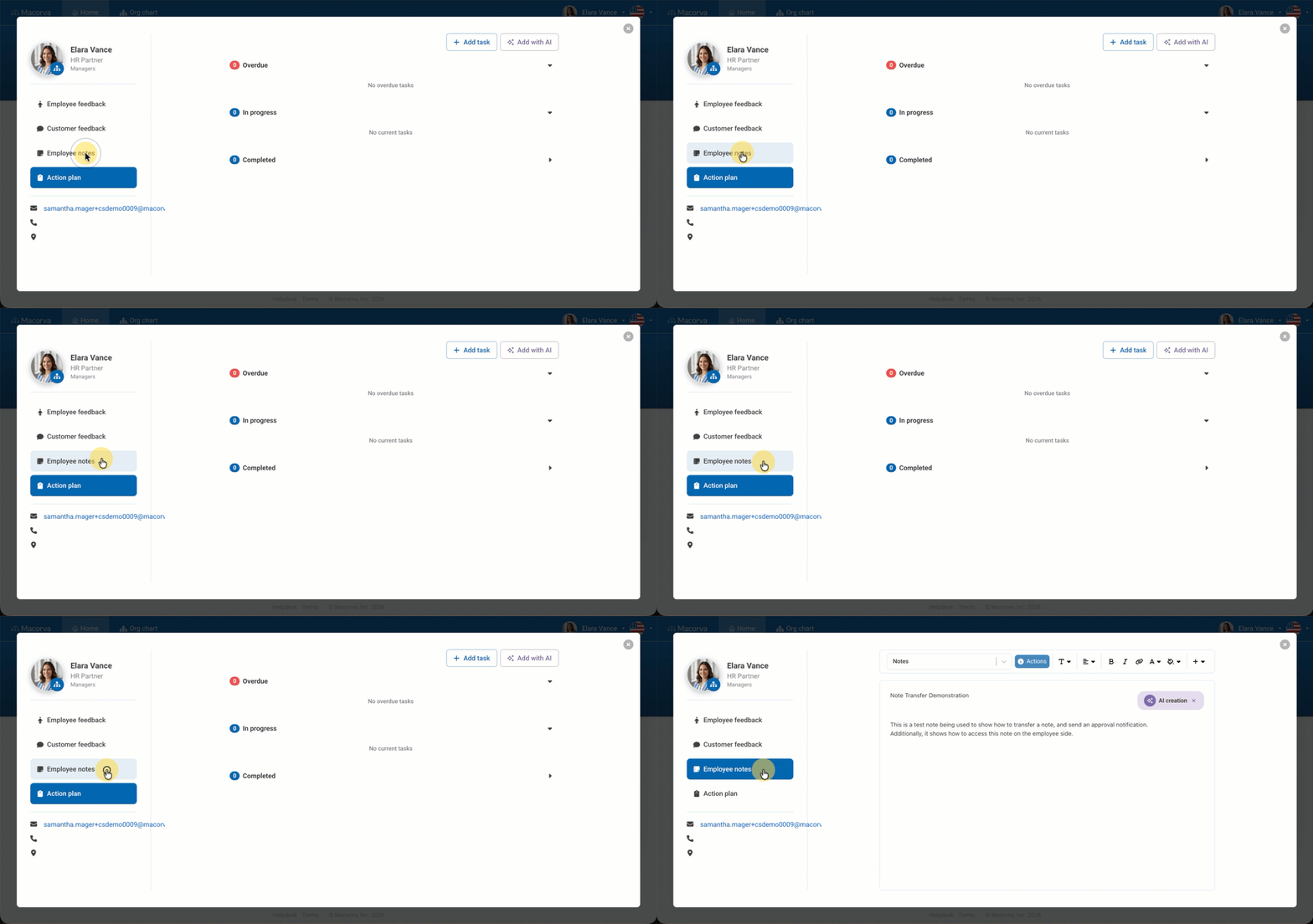
On the left-hand sidebar, click the Employee Notes tab.
Step 3: Open Note Info
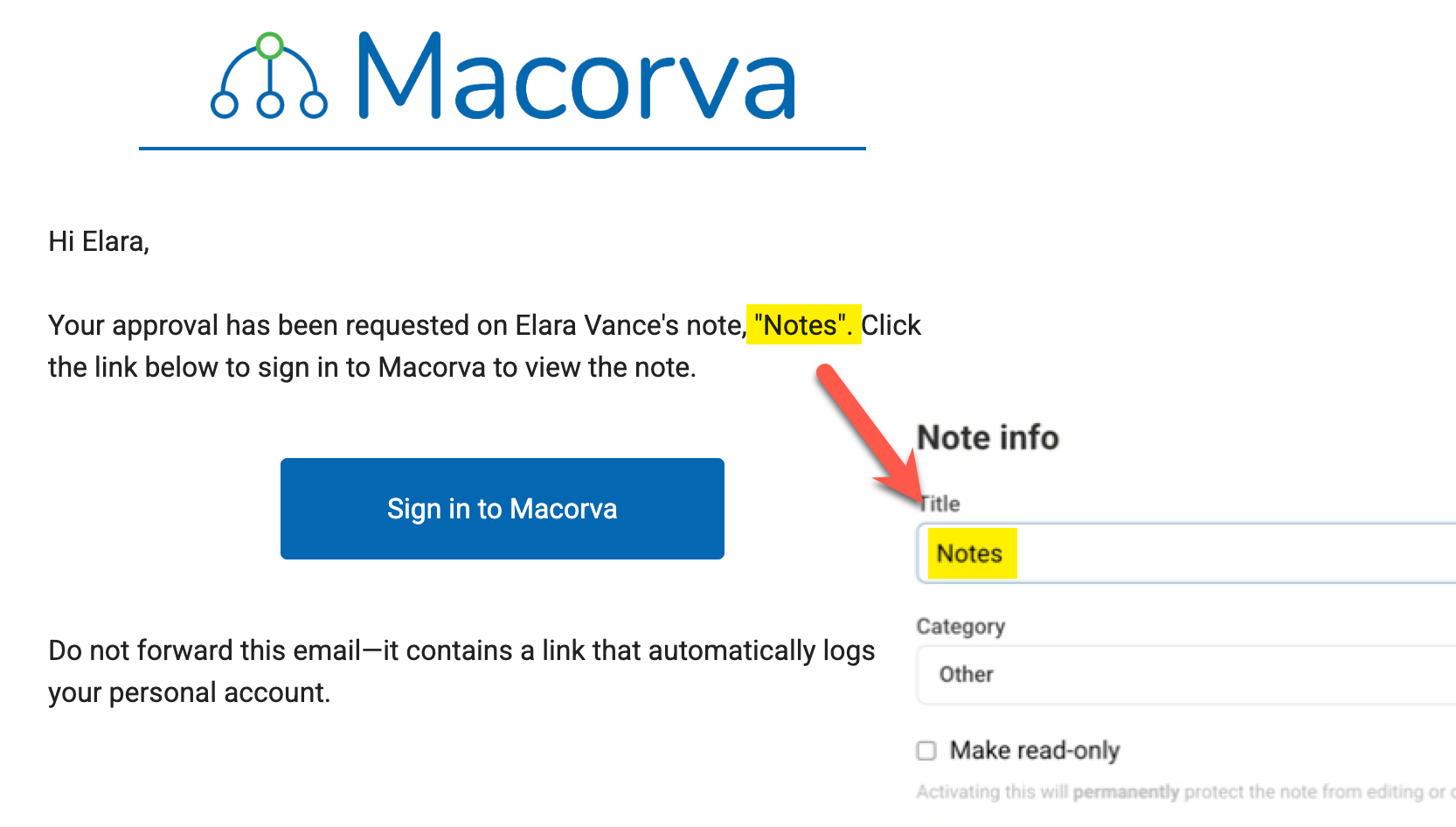
Select the note that requires approval from your list (Note: The title of the specific note requiring approval is included in the notification email you received).
Click the blue Actions button located at the top of the note text area.
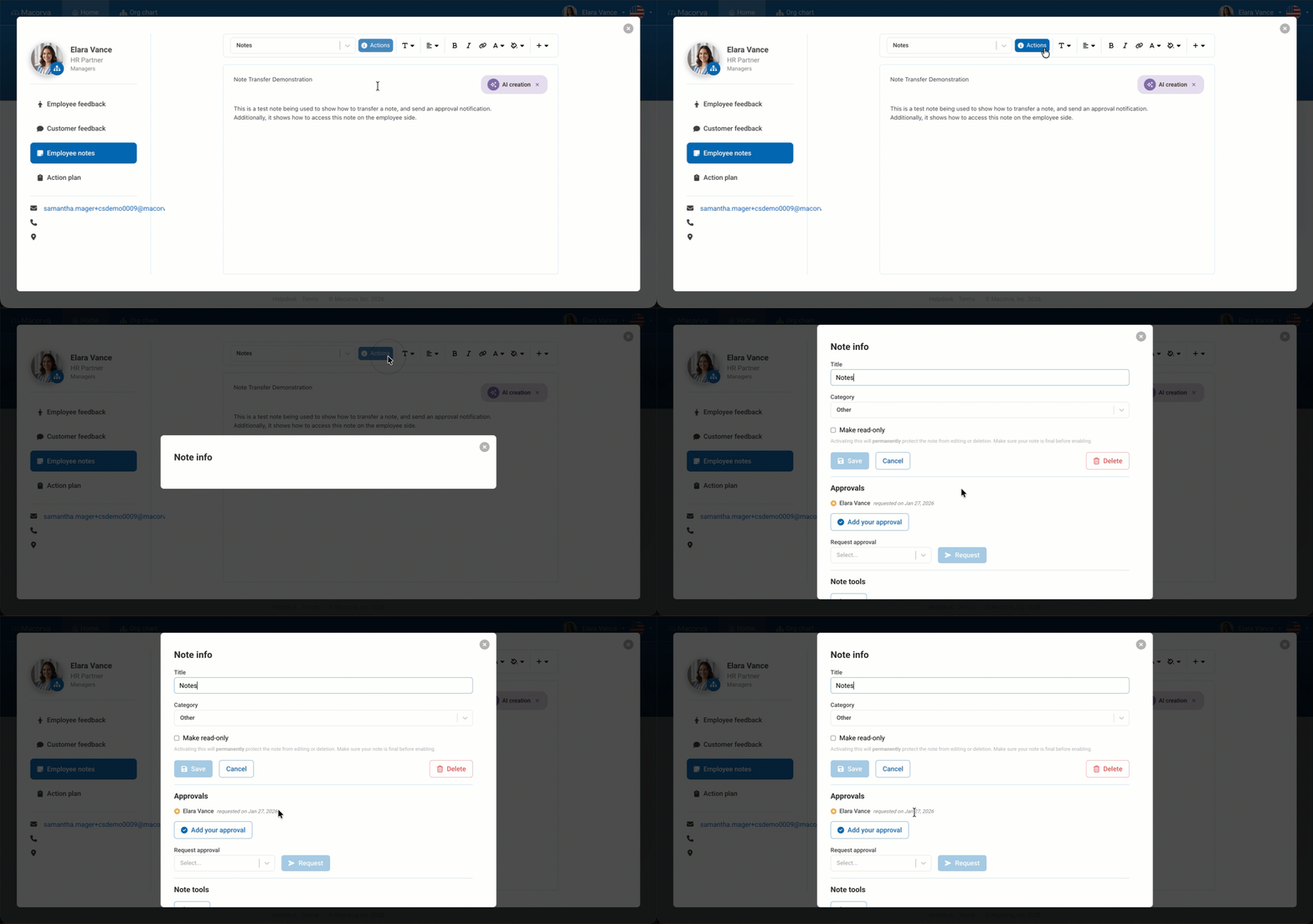
Step 4: Submit Your Approval
In the Note Info pop-up, scroll down to the Approvals section.
Click the green Add your approval button.
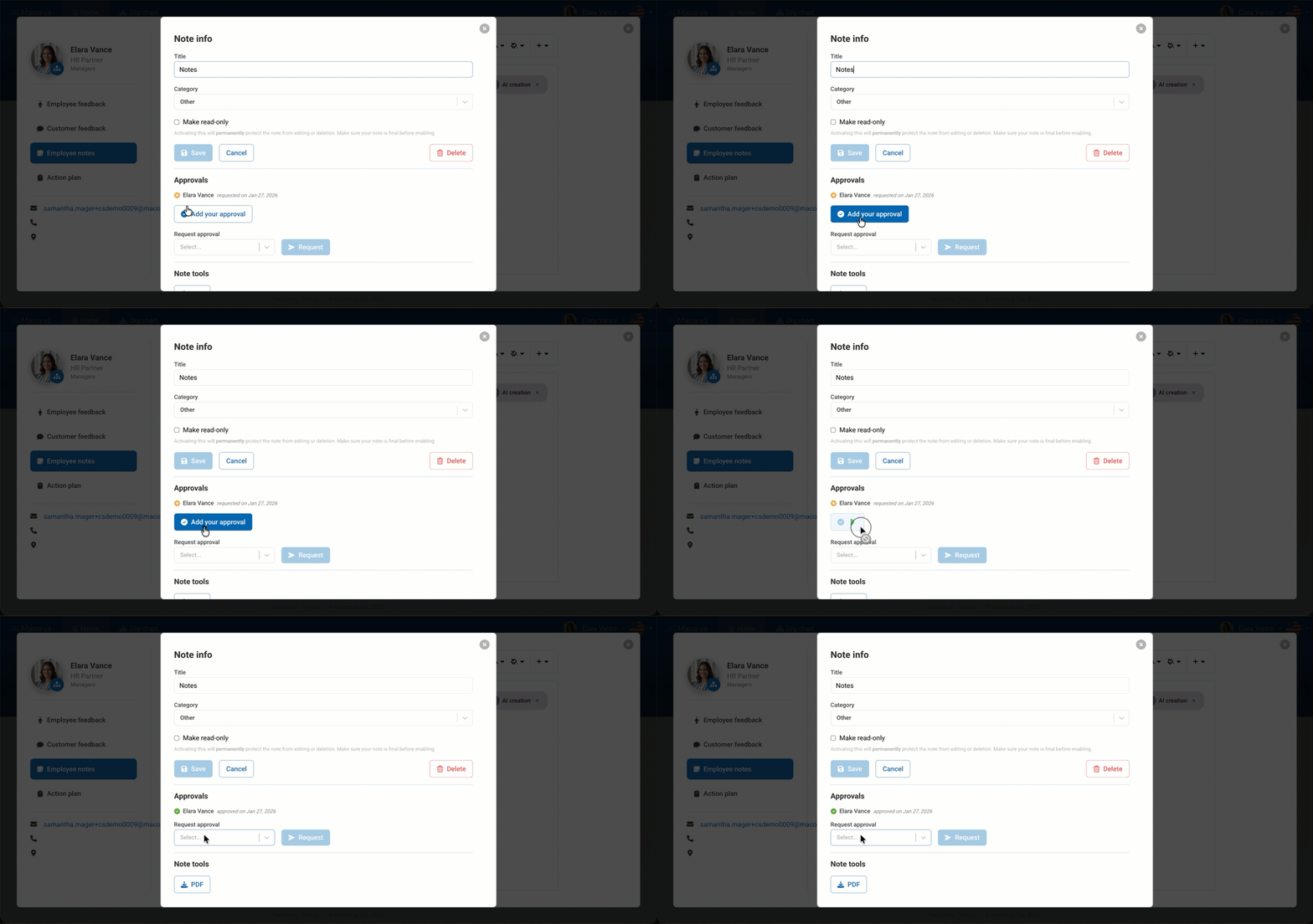
Your status will update to "Approved" with the current date, signifying the task is complete.