
Users with Administrator permissions can modify another user's permissions. To modify:
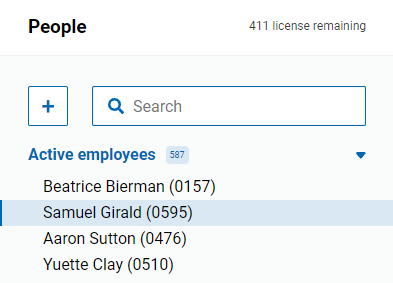
- Navigate to Configure > People
- Search and select an employee to edit.
- Check or uncheck to modify the user's settings under the CX section. Hover over the info bubble for detailed explanations of each permission group.
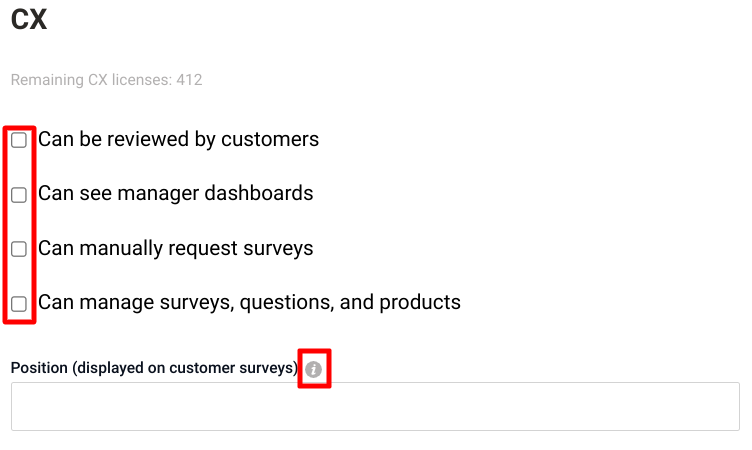
- Under “Can see manager dashboards” you will see multiple options:
- Can view all surveys: allows user to view all CX/LC survey results
- Can view all surveys within these categories: limits user to only be able to view CX/LC results for the surveys within a given category
- Can view all surveys within these groups: limits user to only be able to view CX/LC results for the surveys within a given group
- Can view these individual surveys: limits user to only be able to view CX/LC results for the specific surveys that are selected
- Can view only surveys with these notes: limits user to only be able to view survey that contain specific information in the notes field. This can help limit access for certain locations or departments if needed.
- Press Save