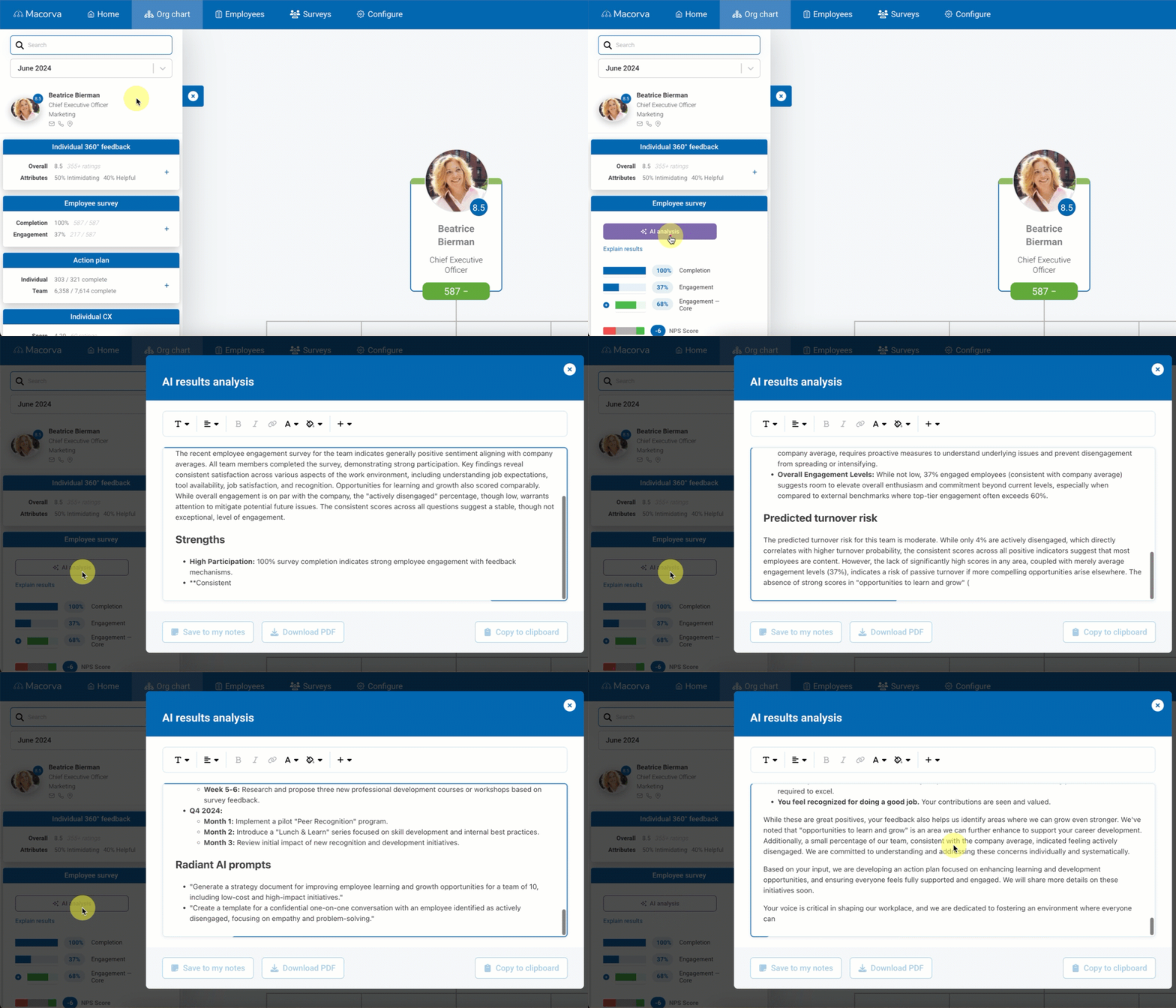
Employee surveys provide valuable insights into team engagement, performance, and areas for growth. As a manager, here’s a step-by-step guide to reviewing your team’s survey results in Macorva.
View Employee Survey Results
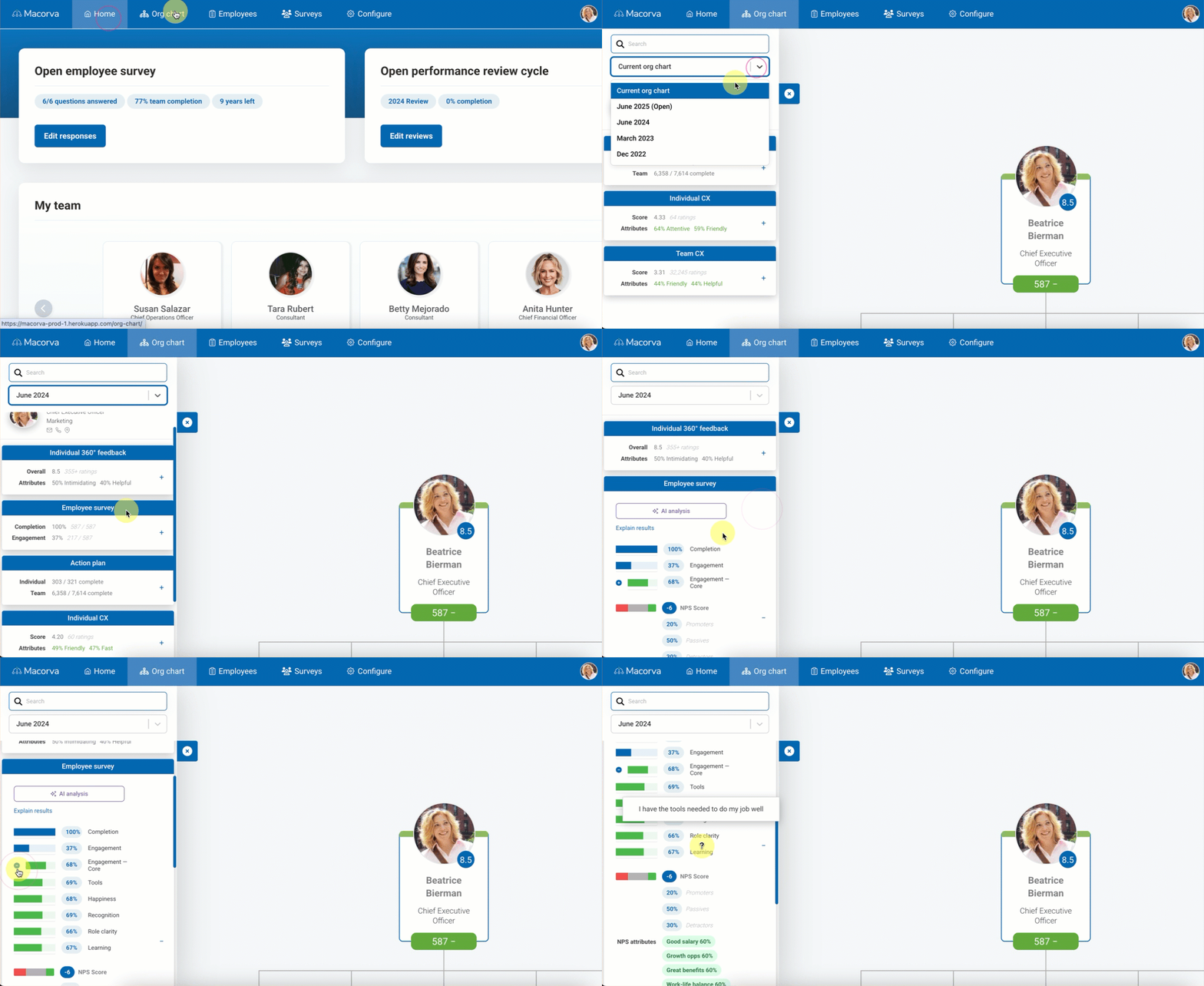
- Log into your Macorva admin account. (You can also use the magic link sent with your survey results for one-click access.)
- Click on the Org chart tab at the top of the page. This will display your reporting structure and access to your team’s survey data.
- On the left, use the drop-down menu to choose the survey you'd like to review.
- Under the Employee survey section, you’ll see your team’s overall results.
- Click the + icon to expand and view responses by question.
- Hover over any question to preview the full wording.
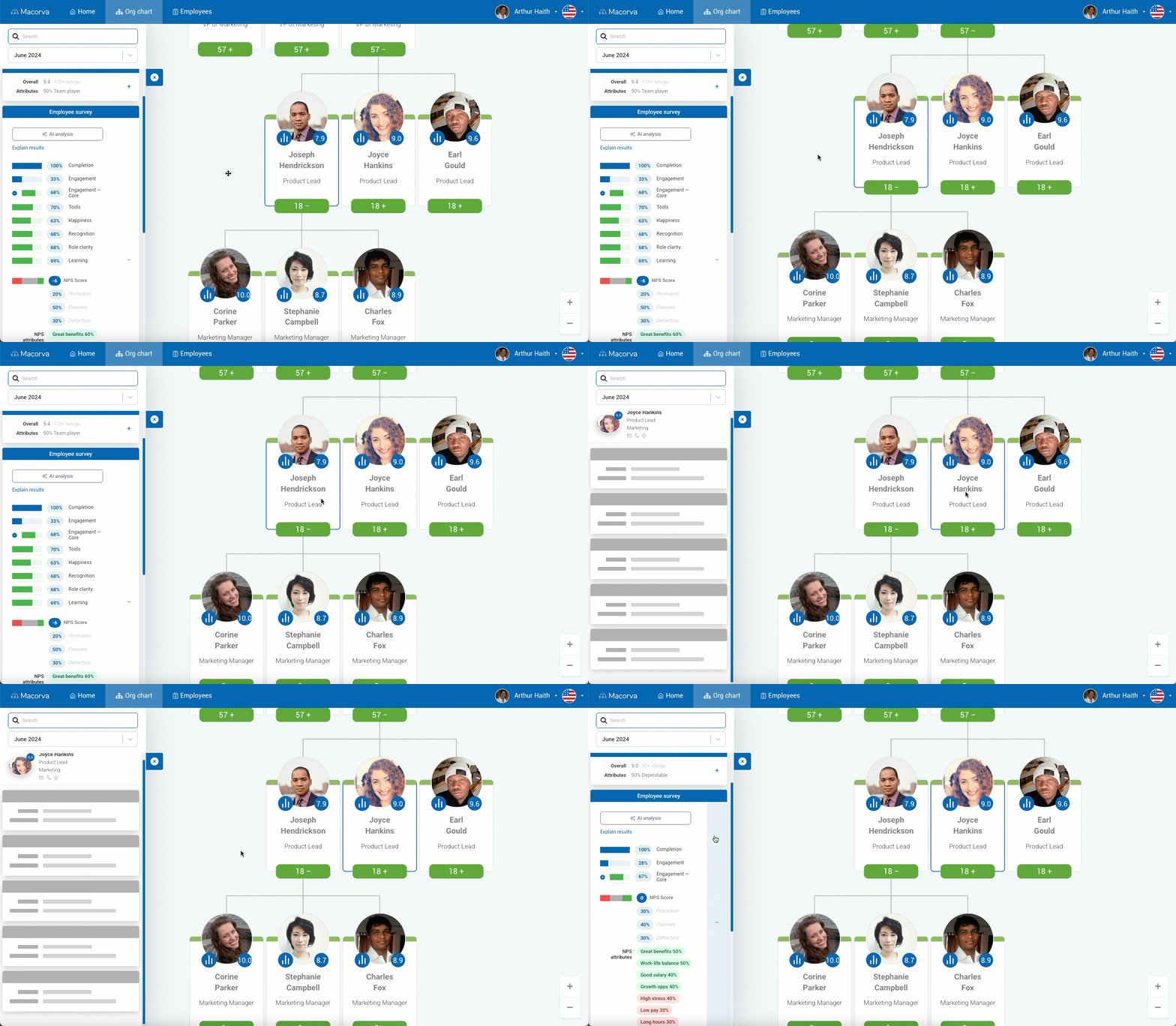
View sub-team results
- If any of your direct reports manage their own teams, you can scroll down and select their team to view their specific results.
Use AI analysis
- For deeper insights, leverage the AI Analysis tool.
- This feature provides: summary, strengths, areas for improvement, predicted turnover risk, recommendations, action plan, radiant AI prompts, and employee communication.