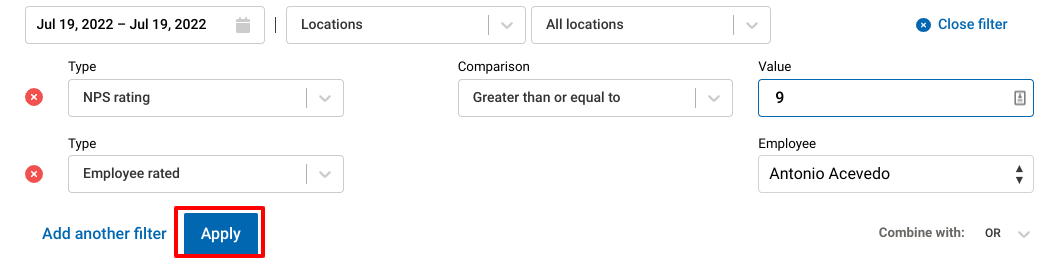
The Macorva Customer Experience platform also allows you to “stack” filters to further refine survey data.
- Click Filter

- Select the appropriate Type, comparison, and value for your first filter. I will use NPS rating in this example:

- Select Add another filter

- Repeat Step 2 with your second filter:
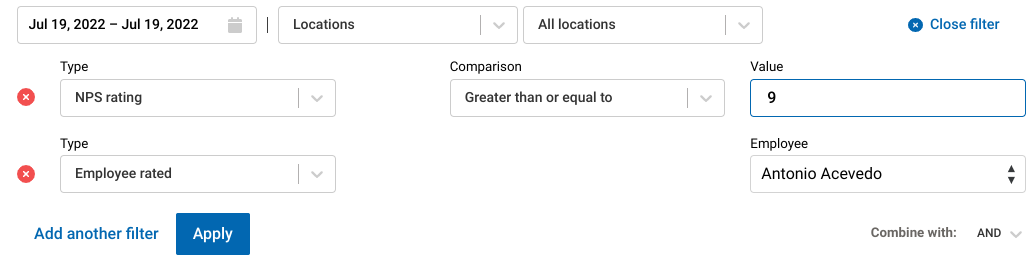
- Add any other filters you wish by repeating Steps 3-4. Once you are finished, select Apply
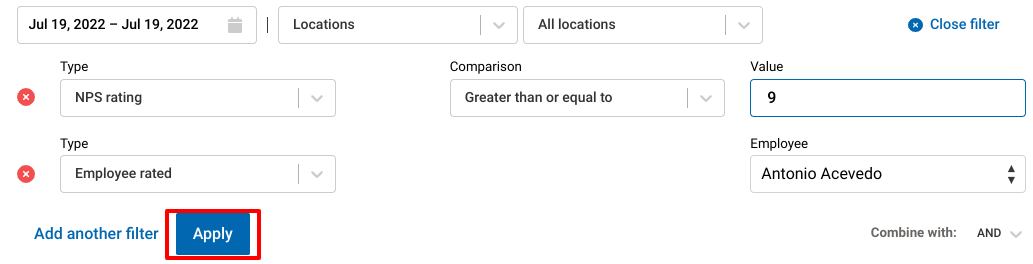
- Note that the default combination of filters is “AND”
You can change this to “OR” if you'd like to see results that fit either of the criteria entered
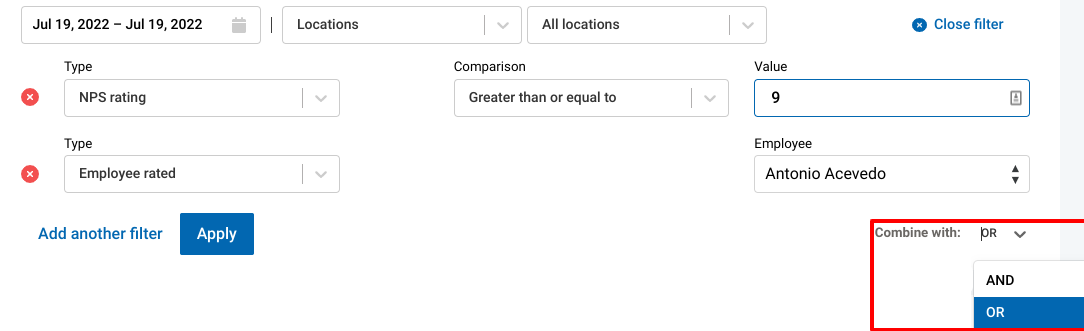
- After switching the “Combine with” always select Apply to ensure data is properly refreshed