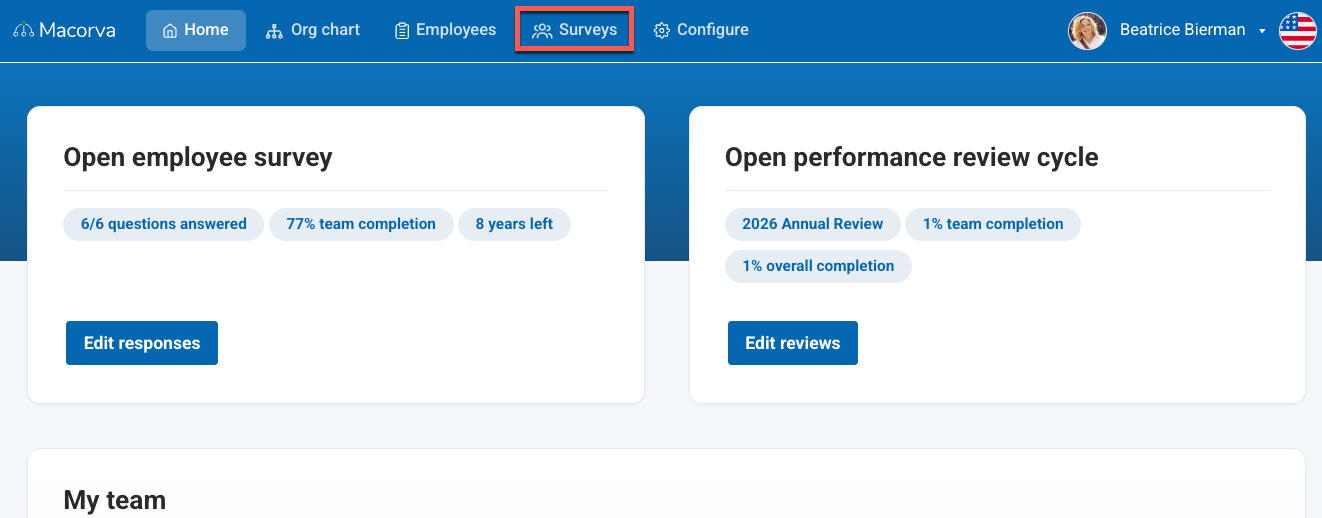
- From the main dashboard, click on Surveys in the top navigation bar.
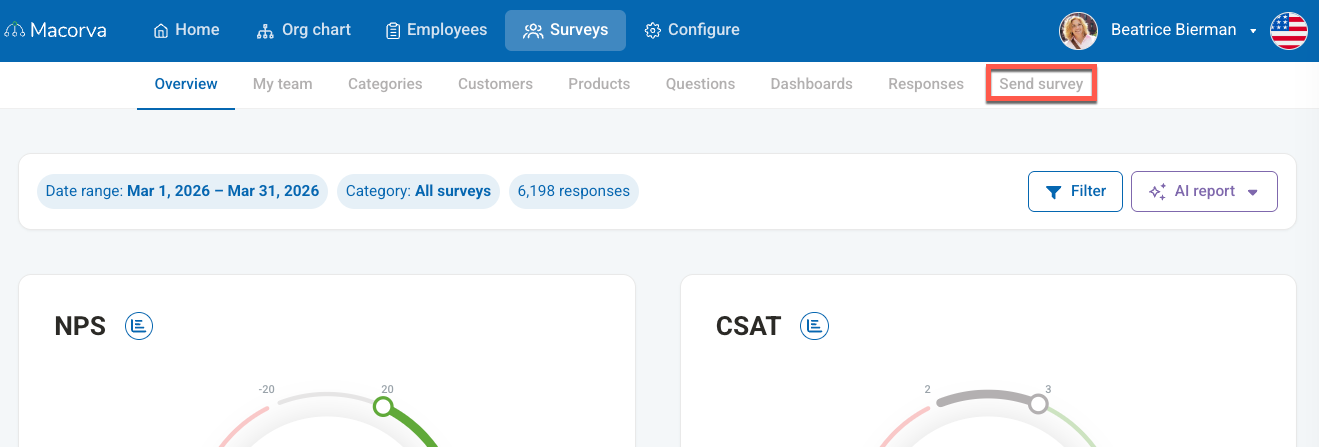
- In the secondary navigation menu below, select Send survey.
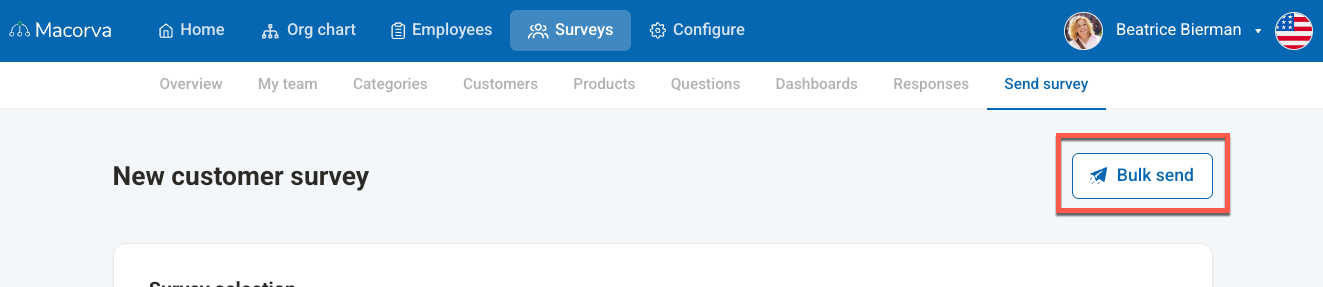
- Click the Bulk send button located in the upper right corner of the page.
- On the "Send surveys in bulk" page, drag and drop your file, or click and upload.
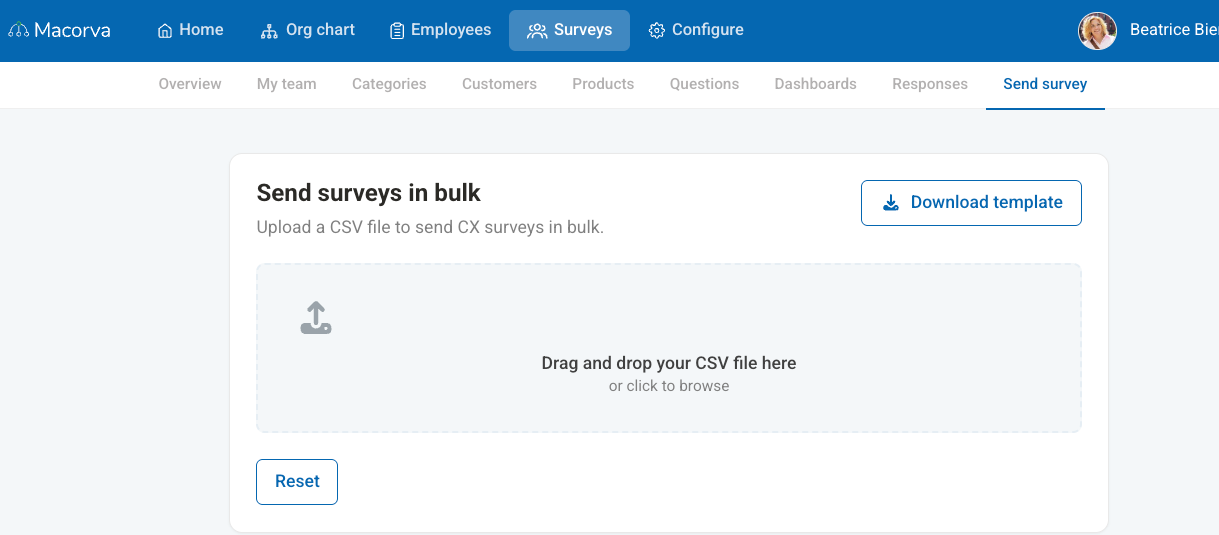
- Click the Upload button to upload the file to the system.
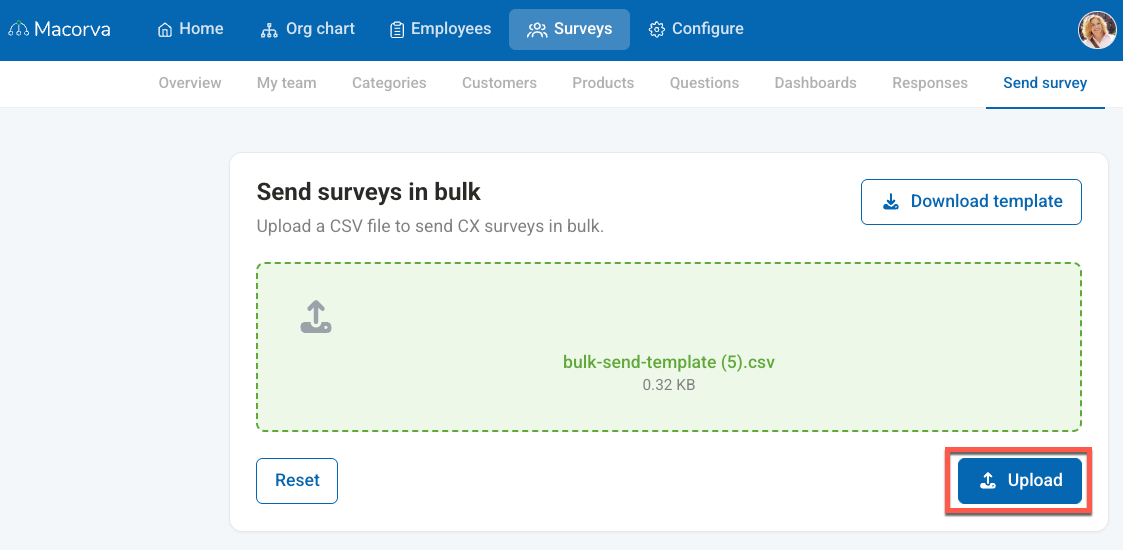
- Wait for the "Upload successful" message, then click the Validate button to ensure your file data is correct.
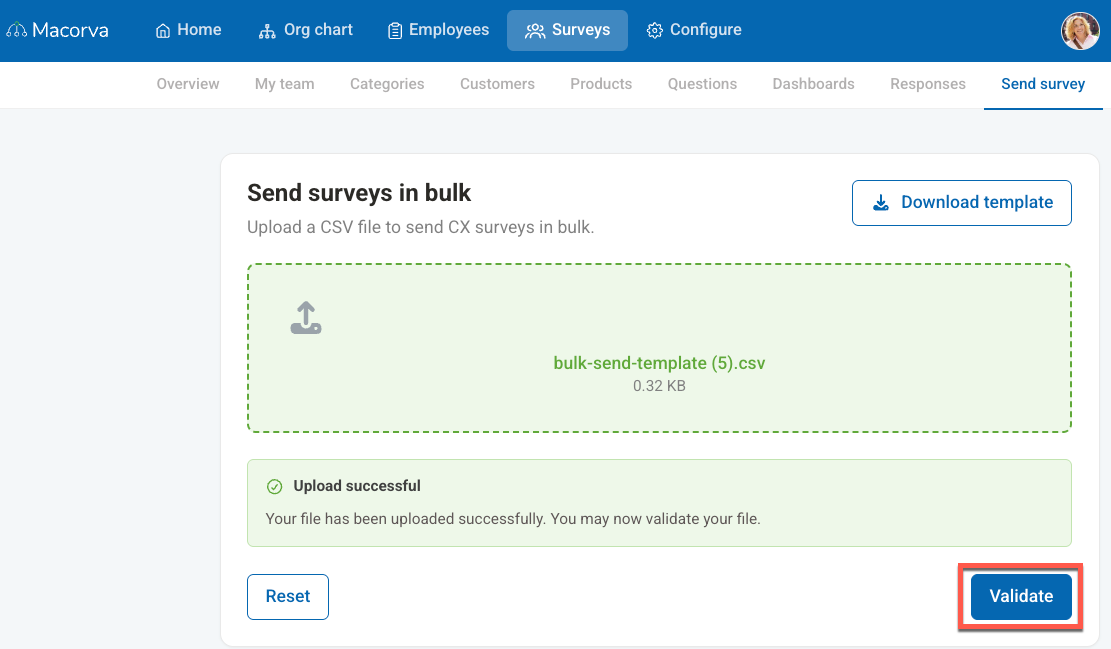
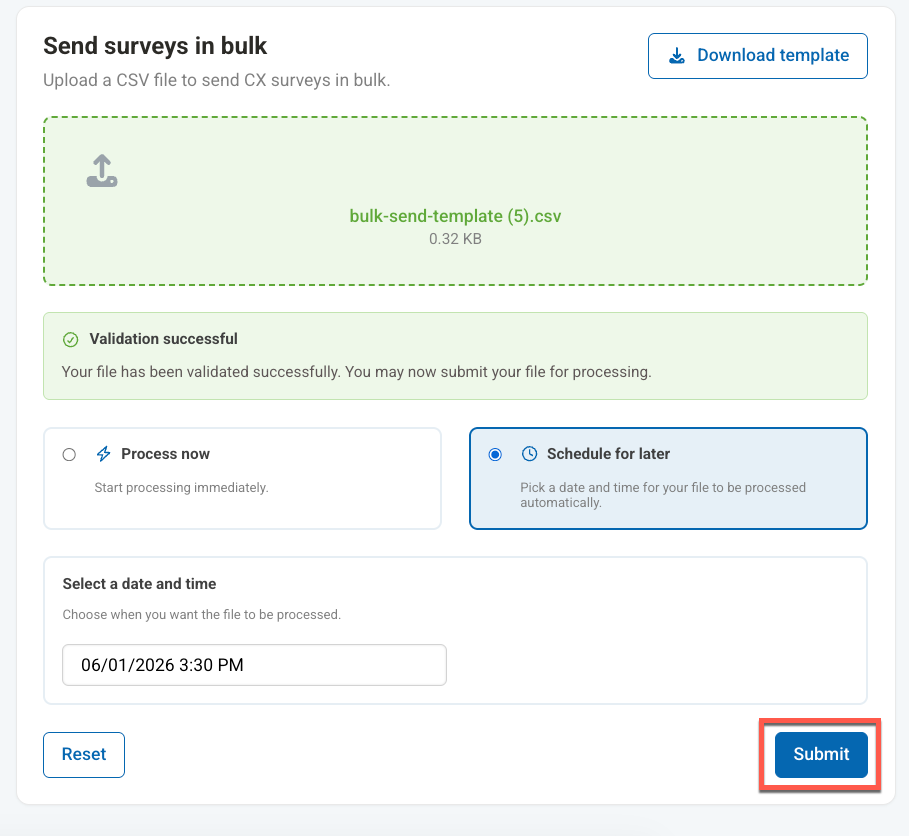
- Once the "Validation successful" message appears, you will see processing options. Select the radio button for Schedule for later.
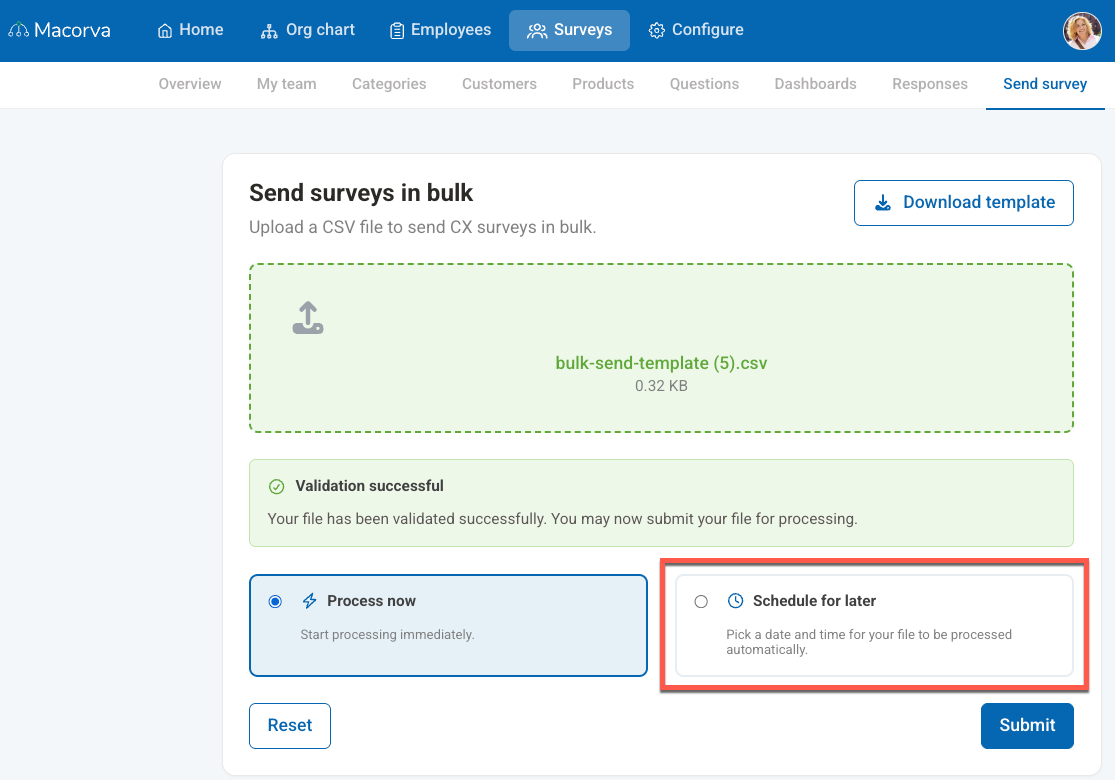
- Click on the "Select a date and time" field to open the calendar. Choose your desired date and then select the specific time from the dropdown list on the right.
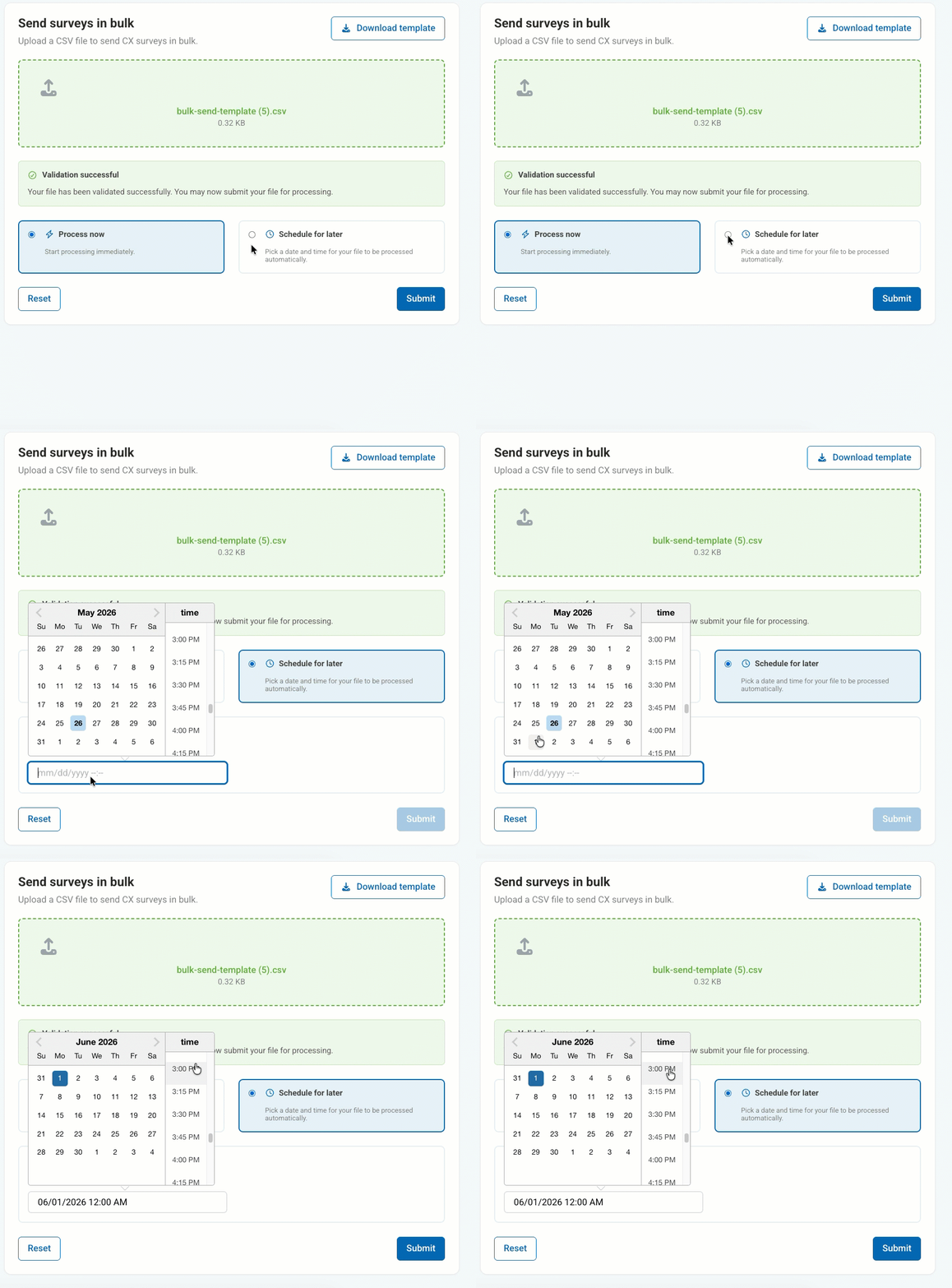
- Finally, click the Submit button to schedule your bulk survey.